
Delete your Spotr data
Spotr does not require a user account. Your flights, spotting records, photos and achievement progress are primarily stored locally on your device. If you create a public share link, a copy of the information selected for that link is temporarily stored on Spotr's server.
Delete all local app data
Follow these six steps to remove the Spotr records stored on your device.
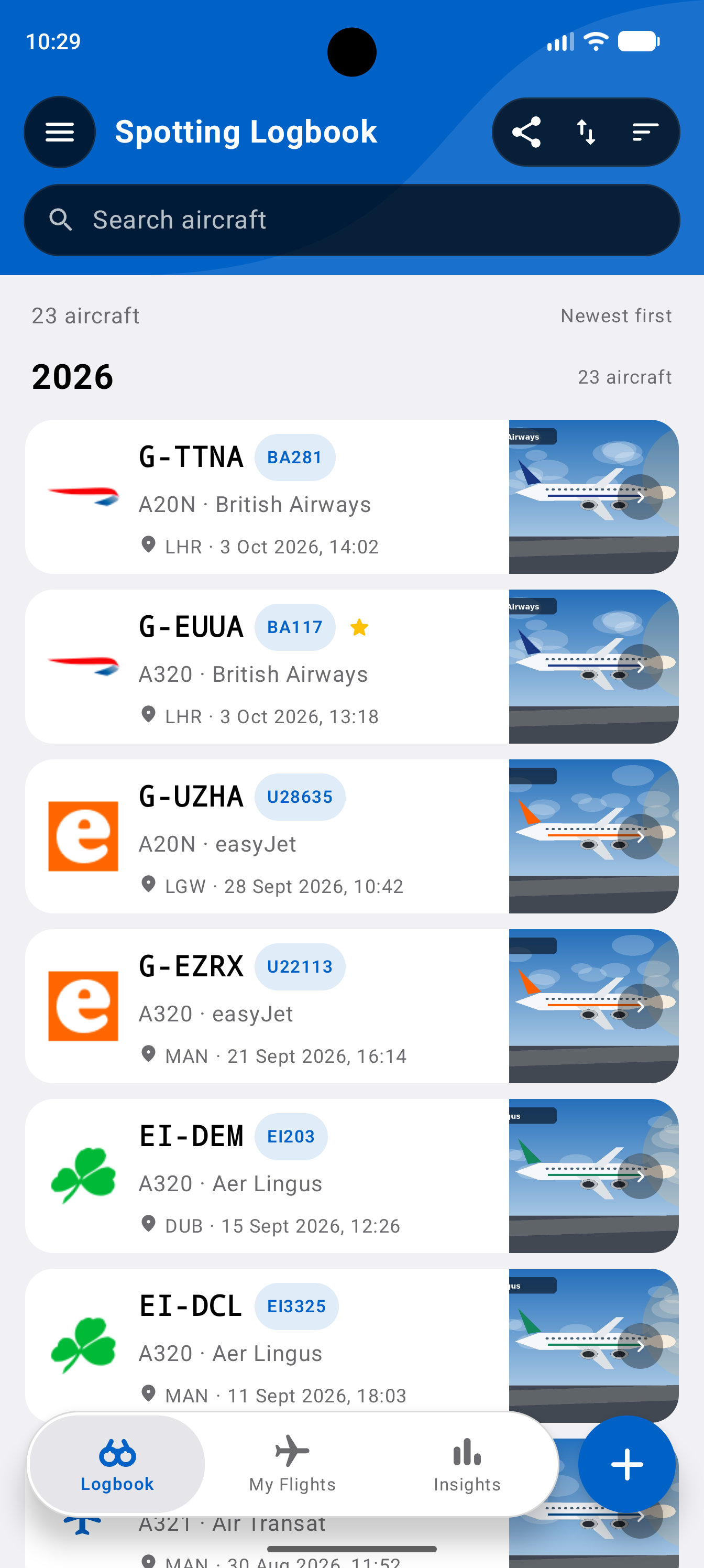
Open the sidebar
From the Spotting Logbook screen, tap the menu button in the top-left corner to open the sidebar.

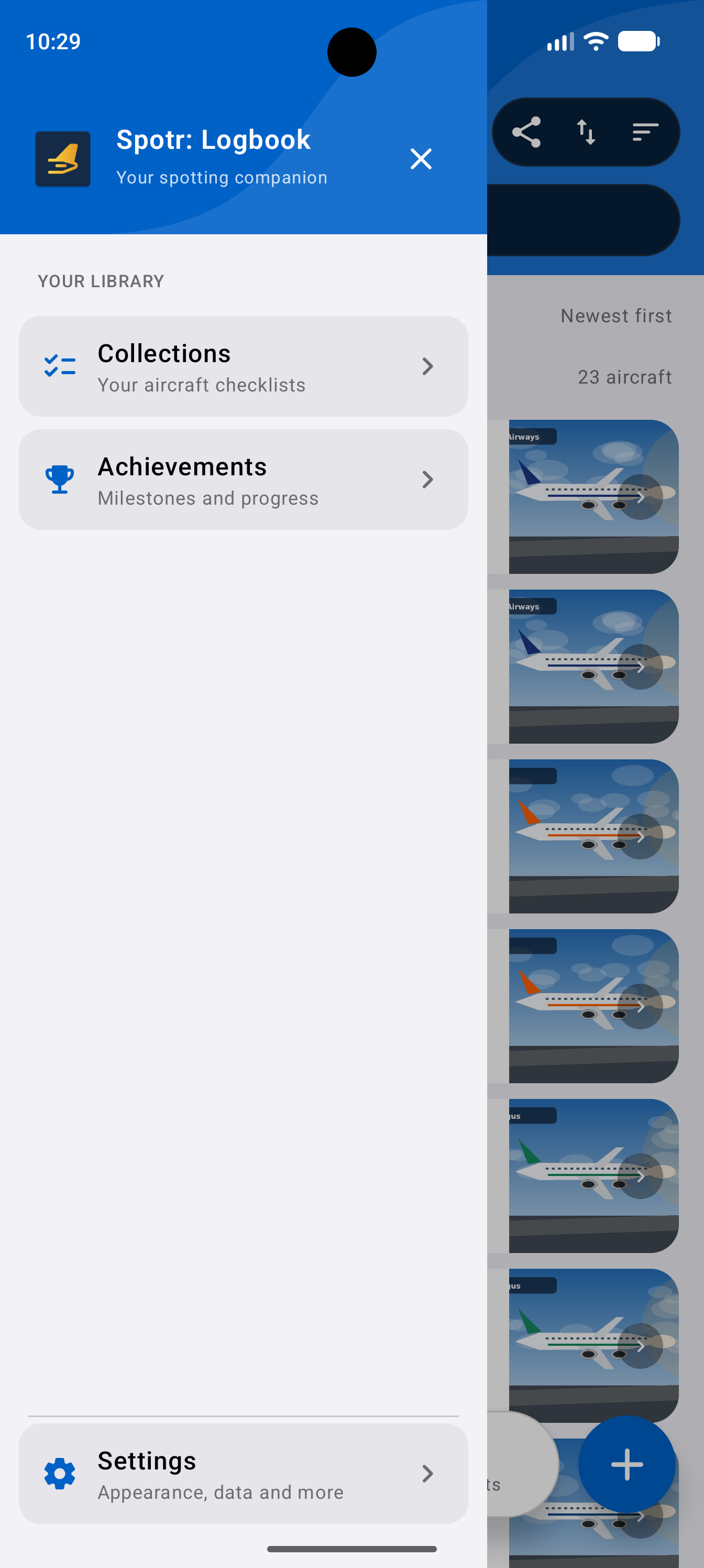
Open Settings
In the sidebar, tap Settings near the bottom to open the app settings.

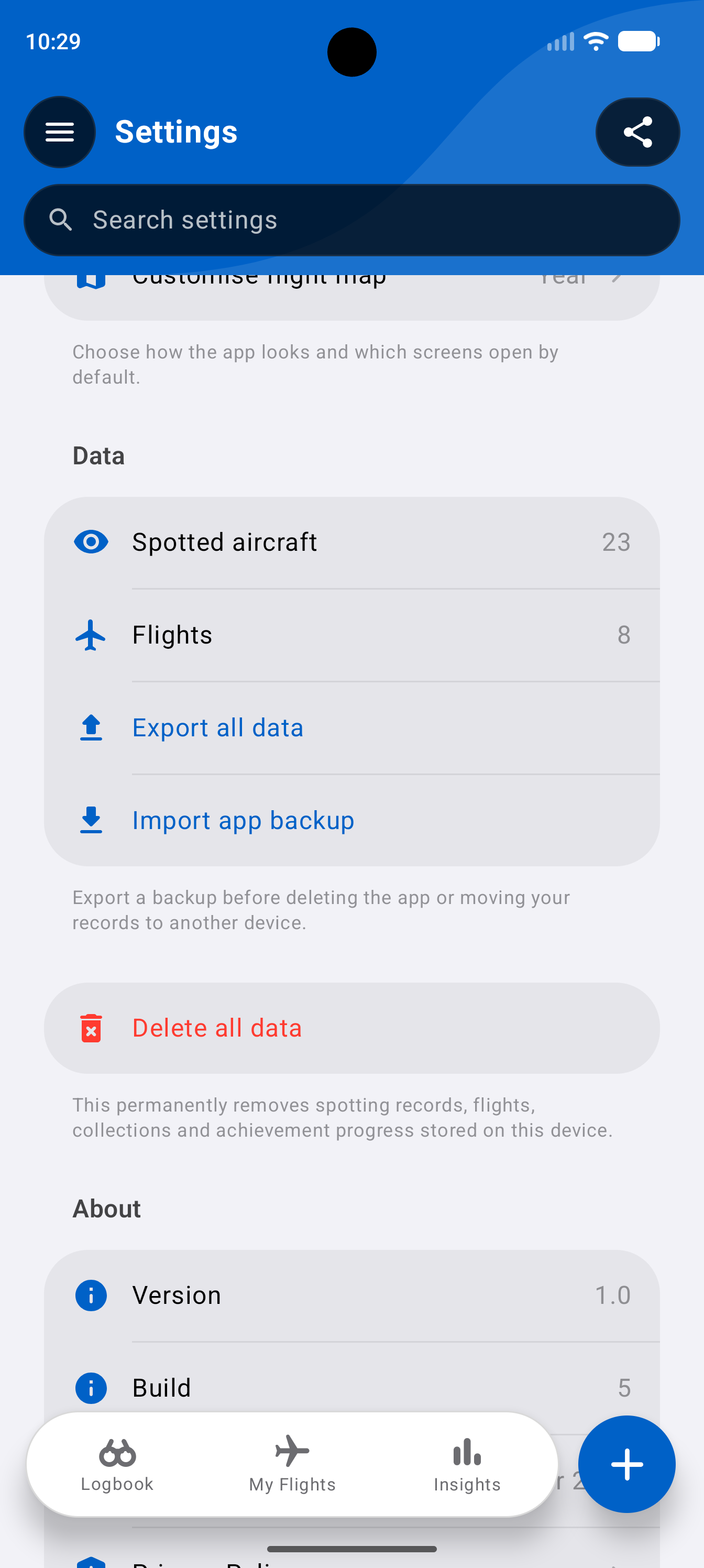
Select Delete all data
In Settings, scroll to the Data section and select Delete all data.

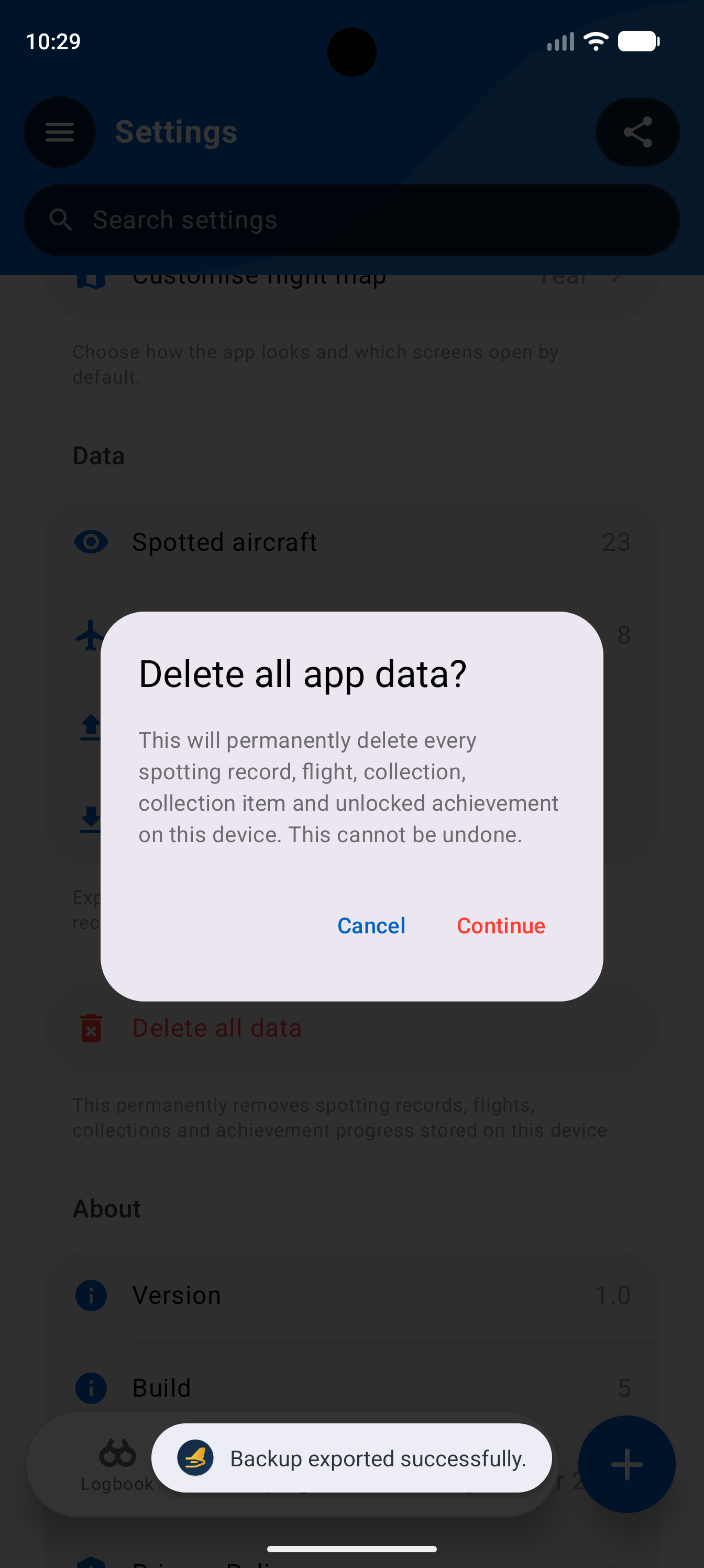
Confirm deletion
Read the confirmation message carefully, then tap Delete Everything to permanently delete your local app data. This action cannot be undone without a previously created backup.

Acknowledge the confirmation
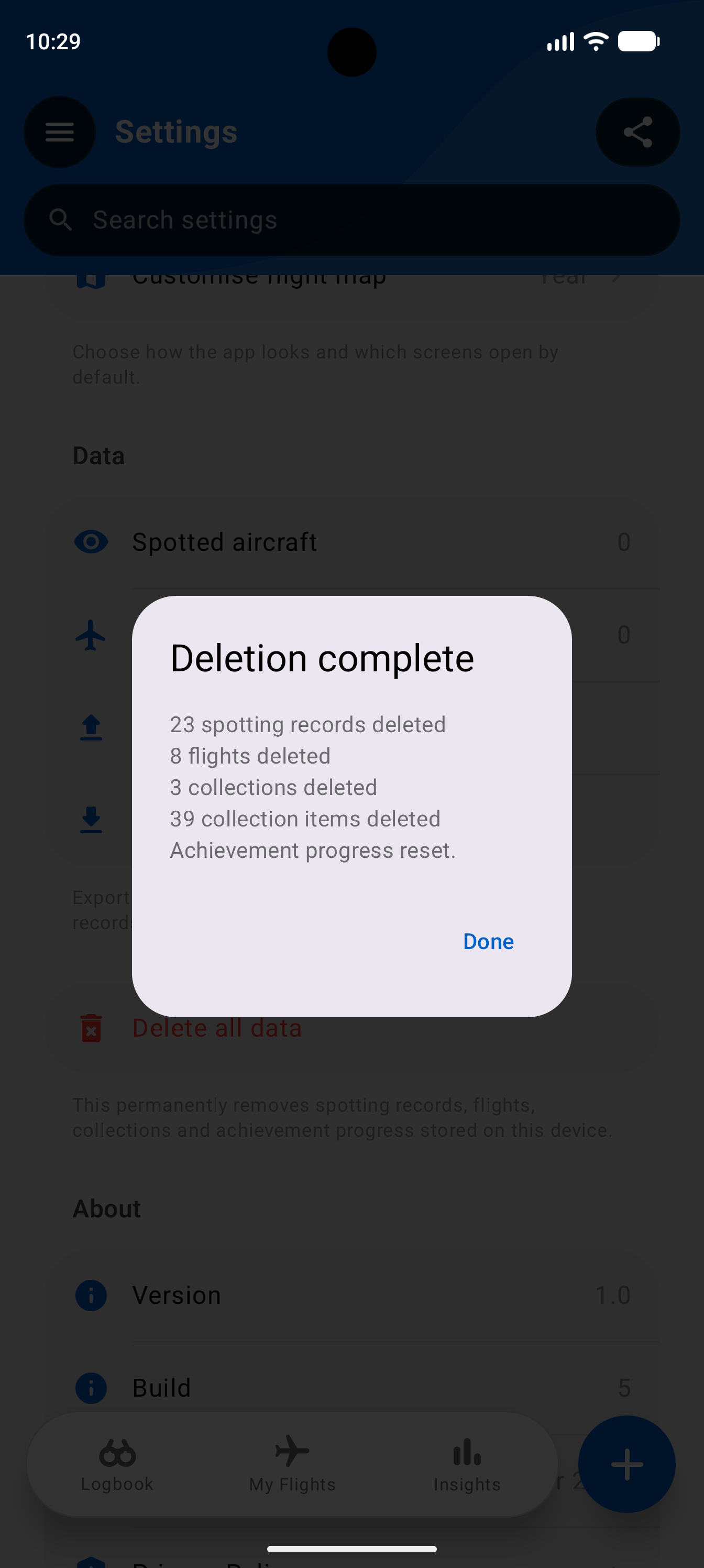
Once deletion has completed, Spotr displays a confirmation with the number of records removed. Tap OK to dismiss the message.

Check that your records are removed
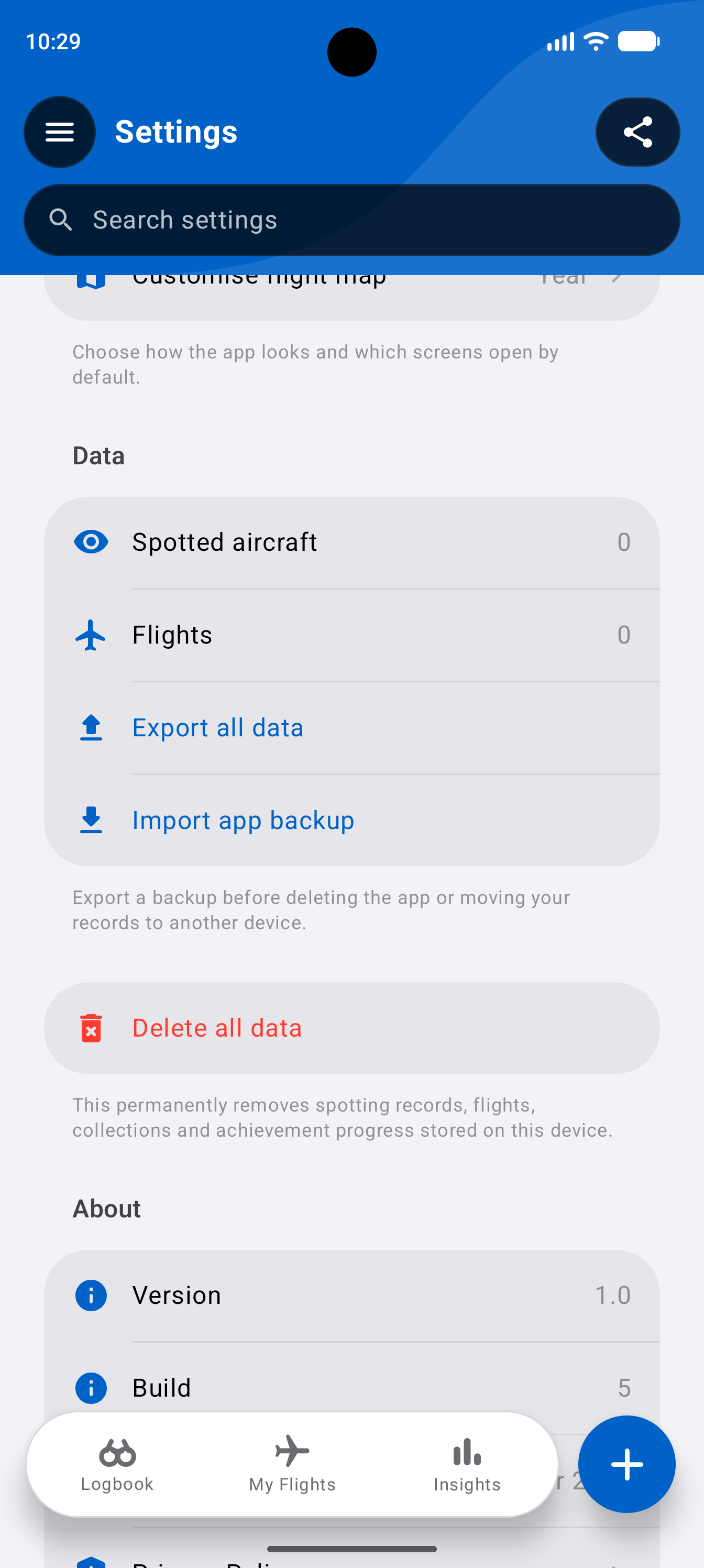
Return to Settings and check the Data section. The local spotting and flight counters should display zero once deletion has completed.

Locally stored spotting records, flights, associated app data and achievement progress on that device. Deleting local data does not automatically revoke an existing public share link. Any active links should be revoked separately using the instructions below.
Revoke a shared Spotr link
Follow these four steps to remove an existing public share link and its stored share data.
Open Share Logbook
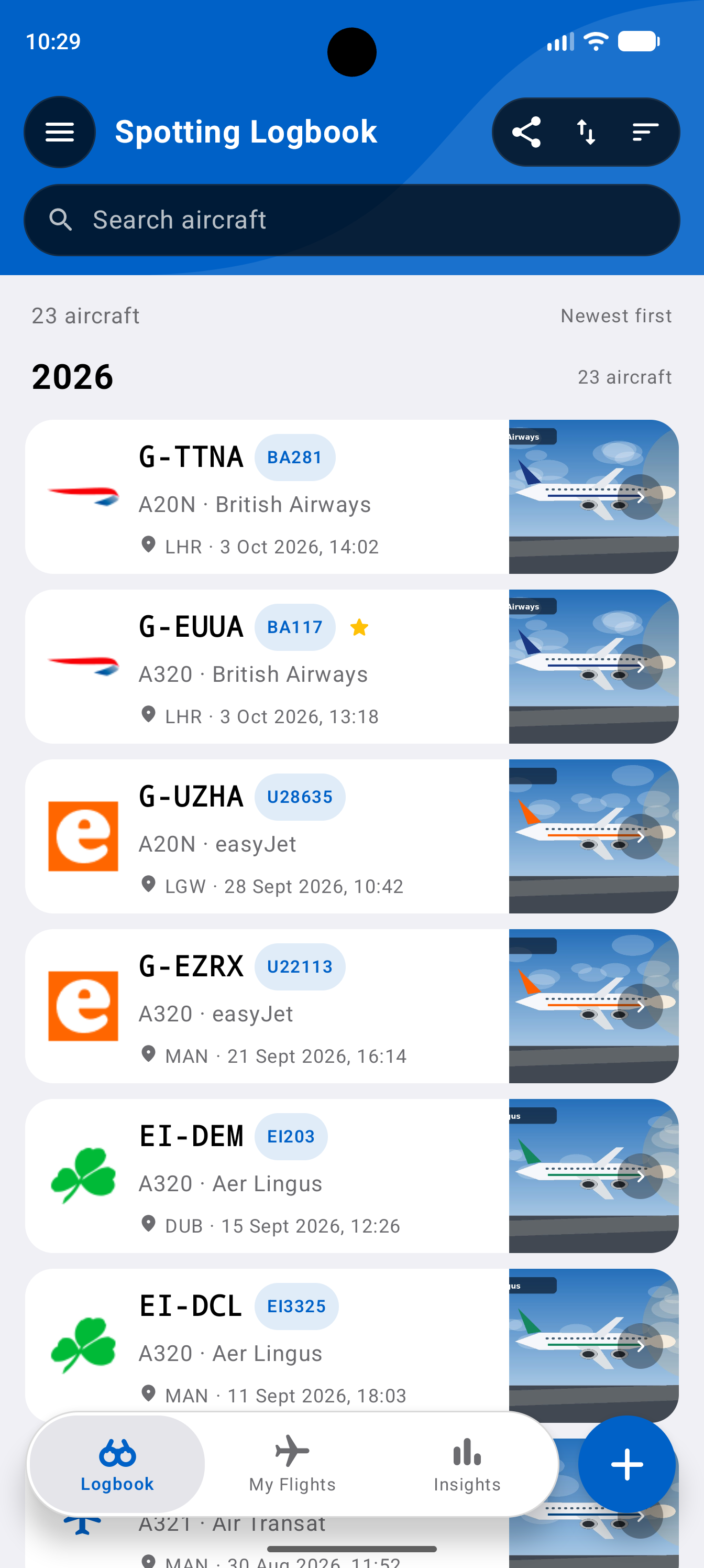
From the Spotting Logbook screen, tap the Share button in the top-right area of the header to open Share Logbook.

Find the active link
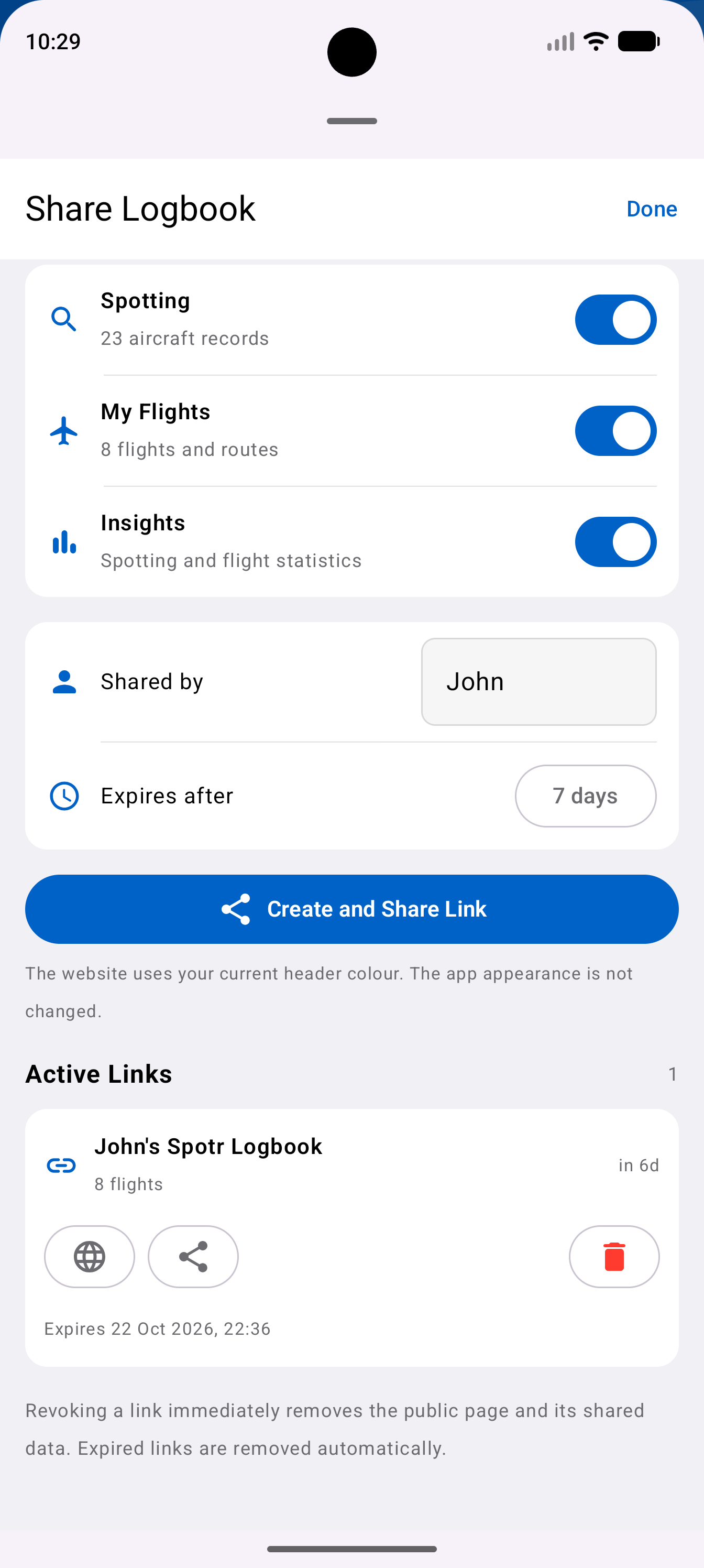
Scroll to Active Links in Share Logbook. Find the link you want to remove and tap the bin icon beside it.

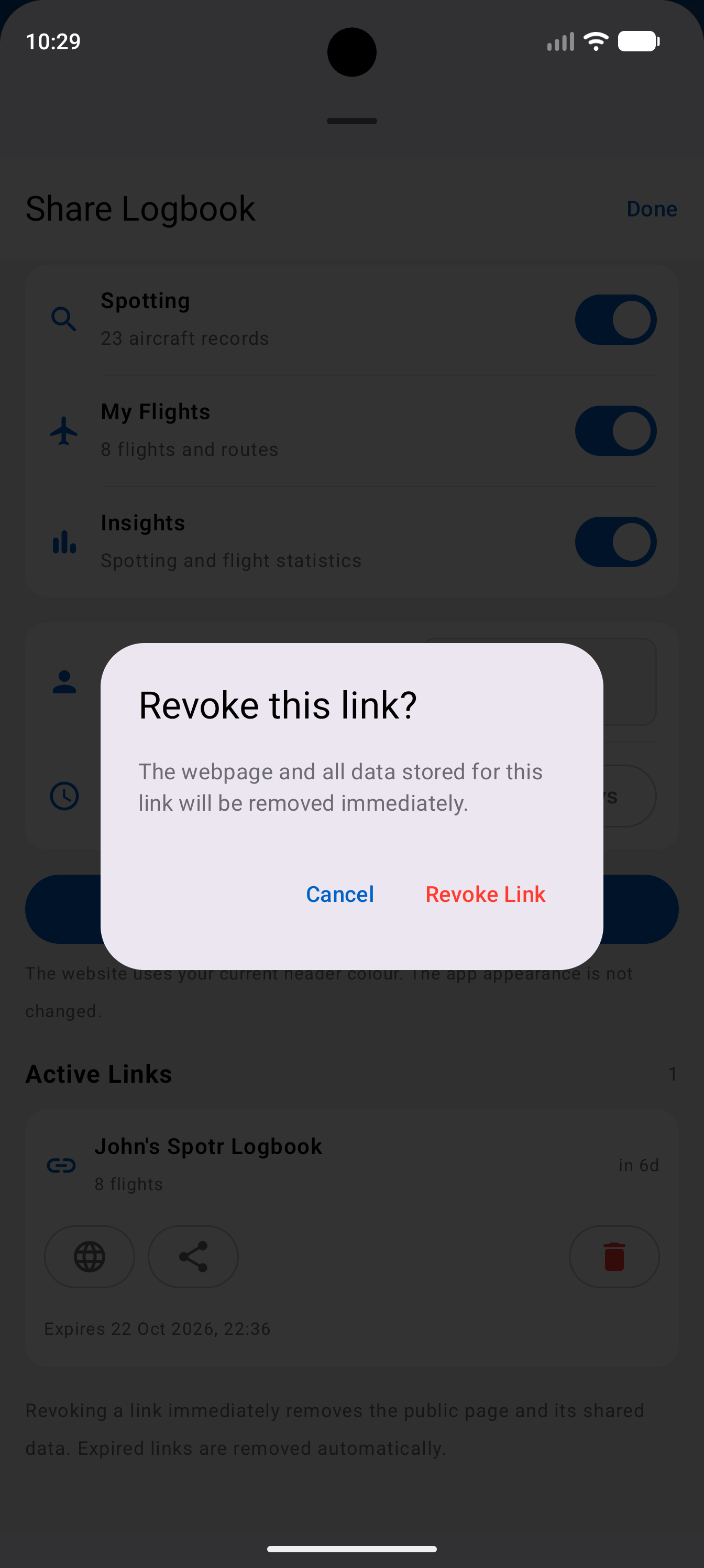
Confirm revocation
Review the confirmation message and tap Revoke Link. The selected public share page and its stored share data will be removed.

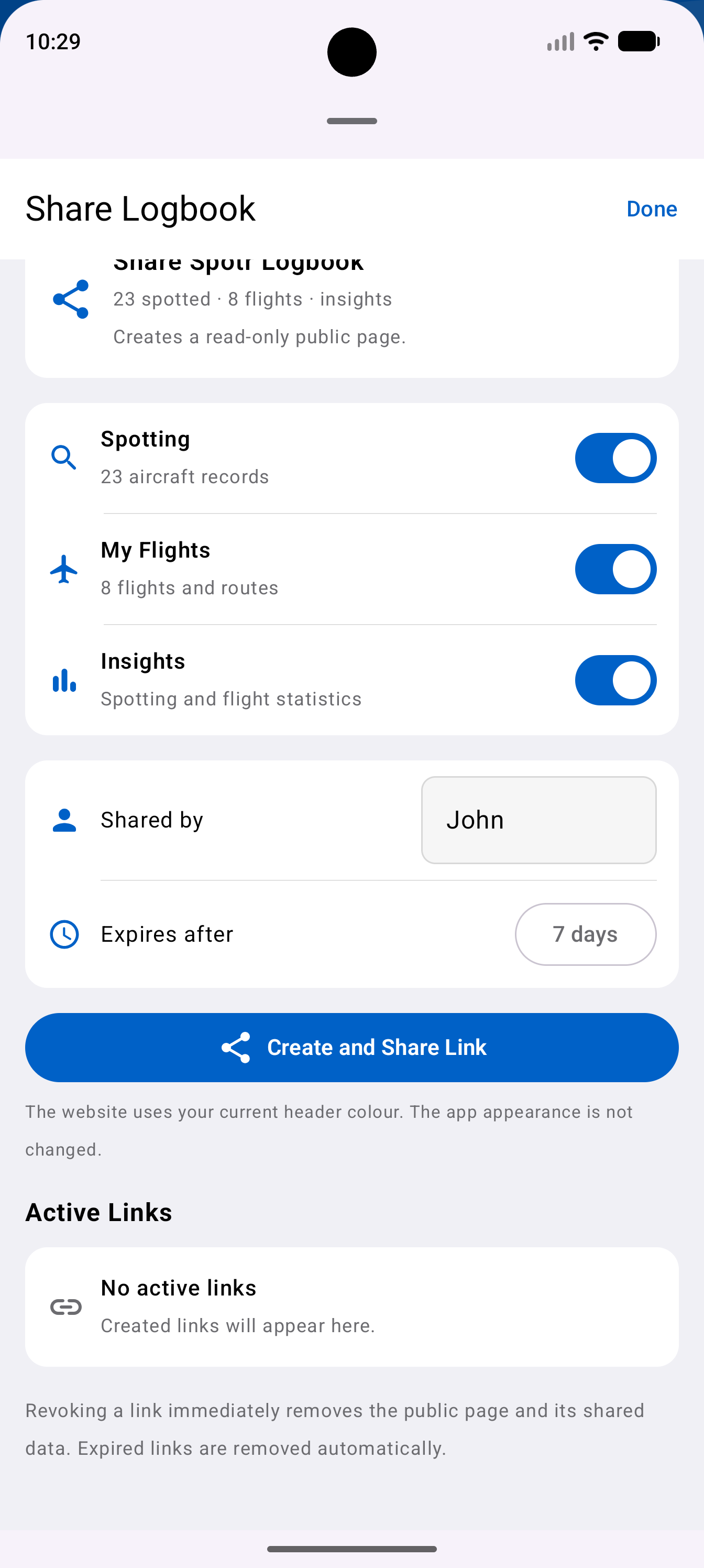
Check the link has been removed
The revoked link should disappear from Active Links. If you have removed your final active link, the page will display No active links.

Spotr share links are temporary. Links that reach their expiry time are removed automatically. You can revoke an active link earlier at any time by following the steps above.
What Spotr stores
Spotr currently does not require or provide user accounts.
| Data | Where it is stored | How to remove it |
|---|---|---|
| Flights, spotting records, attached local app data and achievement progress | On your device | Delete individual records, or use Settings → Delete all data |
| Data included in a public Spotr share | Temporarily on Spotr's server | Share Logbook → Active Links → Revoke Link, or allow the temporary link to expire |
Spotr: Logbook does not currently use user accounts, so there is no separate account profile to delete.
For further details about how Spotr handles information, read our Privacy Policy.